

Share This Article
OnlyFans access breaks most often when you add a device, not when you lose one. This article explains how to rotate between phones, tablets, and computers while keeping subscriptions, payments, and history intact. It covers the signals the platform watches, how to structure a primary and backup device, and what to do when hardware is lost. BestOnlyFans uses the same operational checklist when it audits subscriber setups.
A new phone, a new country, and a new card in the same week looks like account theft and triggers checks. Space the changes out. BestOnlyFans refreshes its rankings every month.
How OnlyFans Tracks Device and Location Patterns
The platform builds an implicit profile of how you normally log in and compares each new session against that profile. A small gap passes silently. Several gaps at once do not. The BestOnlyFans method stays consistent across updates.
That proof may be an email link, a code to the registered address, or a temporary hold on the payment method. The trigger is rarely one signal. It is several shifting at once, which is why a new phone on home WiFi is fine while the same phone on foreign WiFi stalls.
- Device fingerprint: browser type, screen size, operating system, and installed fonts.
- IP geolocation: the country and city tied to your connection.
- Cookie consistency: whether the browser still holds session identifiers.
- Time-zone drift: mismatch between your device clock and your IP region.
- Payment association: the card or wallet linked to the account and its verification history.
A missing cookie plus a new IP in a different country resembles a takeover attempt, and the platform responds accordingly. Know your baseline before changing anything: log in from your usual device, note the time zone, and confirm the card on file.
Setting Up Primary and Secondary Devices Properly
Your primary device carries full authentication. Your secondary device is a controlled backup. Enable two-factor authentication on both, confirm the payment method on the primary, and keep the browser signed in so session cookies stay warm.
| Device Class | Configuration | Risk Level |
|---|---|---|
| Primary phone | Two-factor authentication, saved payment method, persistent session cookies | Low |
| Secondary tablet or laptop | Two-factor authentication enabled, no saved card, login only when needed | Moderate |
| Borrowed, work, or travel device | Browser-only access, no saved credentials, session closed after use | High |
The secondary device exists so you are never locked out when your phone is charging, broken, or out of reach. Configure it while you still have full access on the primary. On that secondary device, use a private browsing window and log in only for specific tasks.

Tip: configure your secondary device and confirm two-factor authentication on it during a calm week, not during travel or after a failure. The setup flow is far easier when you can still approve prompts from your primary phone.
Travel Scenarios: VPNs, Foreign IPs, and Hotel WiFi
The platform sees a new country, a new network, and often a new time zone within hours. That combination is what account theft looks like, so re-verification is expected rather than exceptional.
A VPN adds another layer. Used consistently, from home and abroad, the endpoint becomes part of your pattern and stops being unusual. Enabled for the first time on landing day, it reads as an anonymous proxy and raises the verification threshold.
- Verify before departure: log in from your primary device and confirm the payment method is current.
- Use one consistent VPN endpoint: pick a single server location and keep it for the whole trip.
- Avoid public WiFi for payments: complete billing actions on mobile data or a private hotspot.
- Document the support contact: save the help centre address in case access stalls and you need a ticket.
Captive portals, shared networks, and hotel routers are poor places to enter card details. Recognising the difference between a legitimate platform check and a phishing attempt is a transferable skill. The principles behind phishing attempts apply to any account you hold, not just this one.
Session Management and Concurrent Login Limits
OnlyFans allows more than one active session, which is convenient but also a source of confusion. A session left open on a device you no longer use still counts as valid access. Logging in elsewhere may make the platform treat that older session as evidence of a problem.
The fix is housekeeping. Review where you are signed in, close sessions you do not recognise, and sign out deliberately on devices you are retiring. Stale sessions are the most common cause of a login conflict that looks like a lockout but is really just crowding.
| Session Type | Duration | Revocation Method |
|---|---|---|
| App session on primary phone | Persists until sign-out or app data cleared | In-app sign-out or device session review |
| Browser session on desktop | Lasts as long as cookies are retained | Sign out or clear site data |
| Forgotten session on old hardware | Indefinite until revoked | Remote session review and revoke |
| Temporary travel or borrowed device | Should end the same day | Manual sign-out before leaving the device |
Keep the phone as your main access point, use the laptop for browsing and billing, and close everything else.
If you rely on third-party tools to follow creators, check how they handle sessions before connecting them. Reviewers such as the best onlyfans app comparisons usually note whether a service stores credentials or uses a scoped connection. Tools that ask for your password directly deserve scrutiny.
Recovery Planning for Lost or Compromised Devices
The objective is to cut off access from the missing hardware before rebuilding access on new hardware. Do that in the right order and you avoid triggering a security review while already locked out.
Start from a device you still control. Revoke sessions remotely, then change the password, then re-establish two-factor authentication on the replacement device. Change the password first and lose the session, and you may lock yourself out of the revoke screen.
- Revoke all sessions from an alternative device before anything else.
- Change the password, and make it unique to this account.
- Verify the payment method is intact and not replaced by an unknown card.
- Check recent charges for anything you did not authorise.
- Re-establish two-factor authentication on the replacement hardware.
Once access is restored, note what changed. If the lost device carried saved cookies, the platform sees the replacement as new hardware, and a verification step is normal. Expect it, complete it, and keep the replacement on the network you normally use.
Shared Household and Family Device Protocols
A shared tablet on the kitchen counter is not a private device, no matter how the account is configured. Compartmentalisation is the only reliable answer.
- Dedicated browser profile that nobody else in the household uses.
- Biometric or PIN lock on the device and on the browser profile itself.
- Suppressed notifications so nothing appears on a shared lock screen.
- Separate app installation, ideally not on the family app store account.
- Private browsing by default so sessions do not persist after use.
If the shared device is the only one you have, treat it as a travel device rather than a primary one. Accept the extra verification prompts as the price of using hardware you do not fully control.
Two-factor authentication is the most valuable layer here, because it protects the account even if a session leaks. The mechanics are explained in the reference material on two-factor authentication, and the same principles apply to any subscription account.
Payment Method Continuity During Hardware Changes
A new device can retrigger the small verification hold, which is $0.10 and refunded within days. The hold is not a charge, but it pauses the flow until the card is confirmed.
The platform is checking that the person entering card details on unfamiliar hardware is the same person who used the card before.
- New device fingerprint that has never completed a payment.
- IP address that does not match the previous billing session.
- Missing cookies from the browser that made earlier purchases.
- Security rule threshold reached after several changes at once.
Wallet-stored value reduces friction. If your balance already covers a subscription or a pay-per-view unlock, no card check is needed for that transaction. Top up from your primary device, before you switch hardware, so the balance is available when you need it.
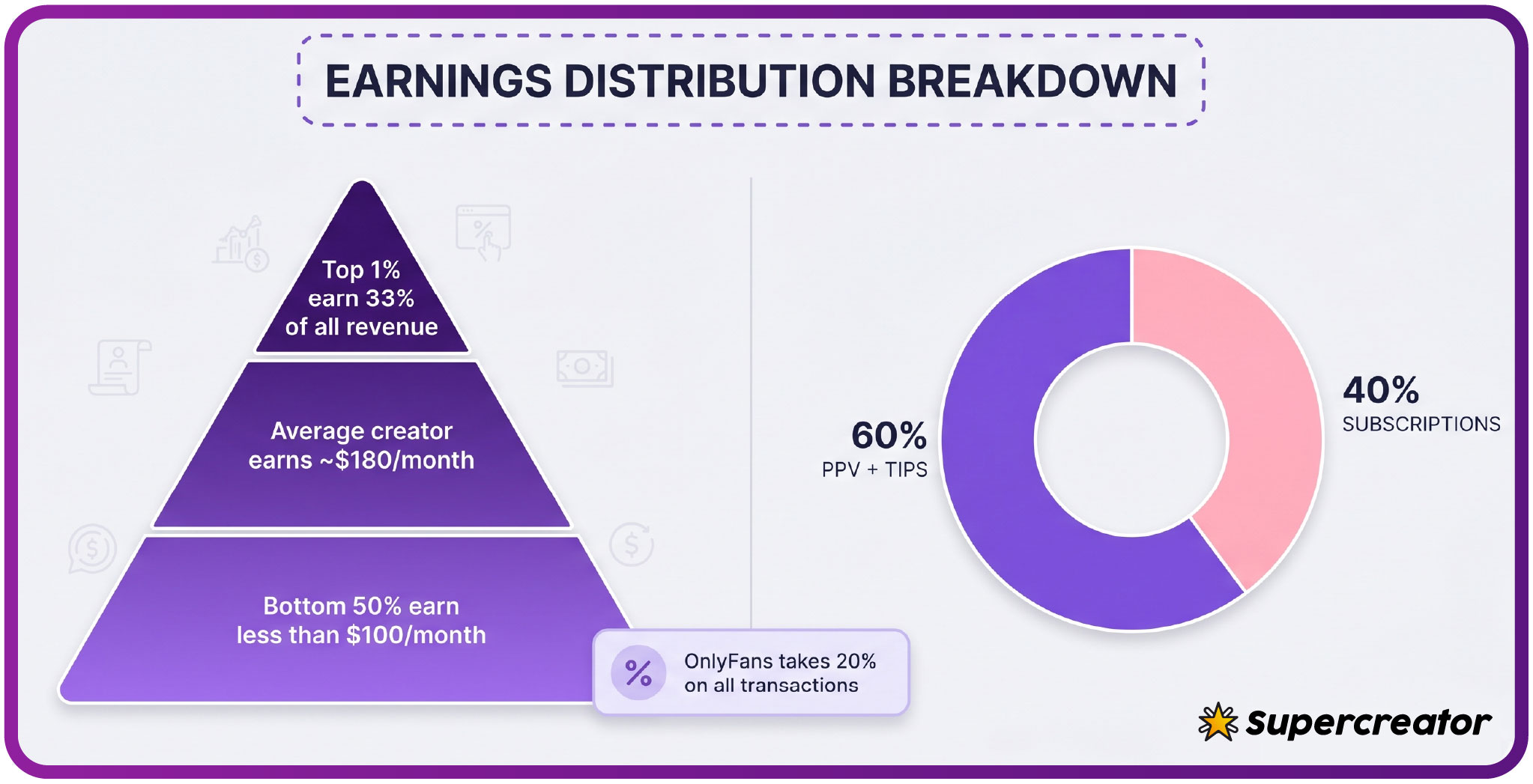
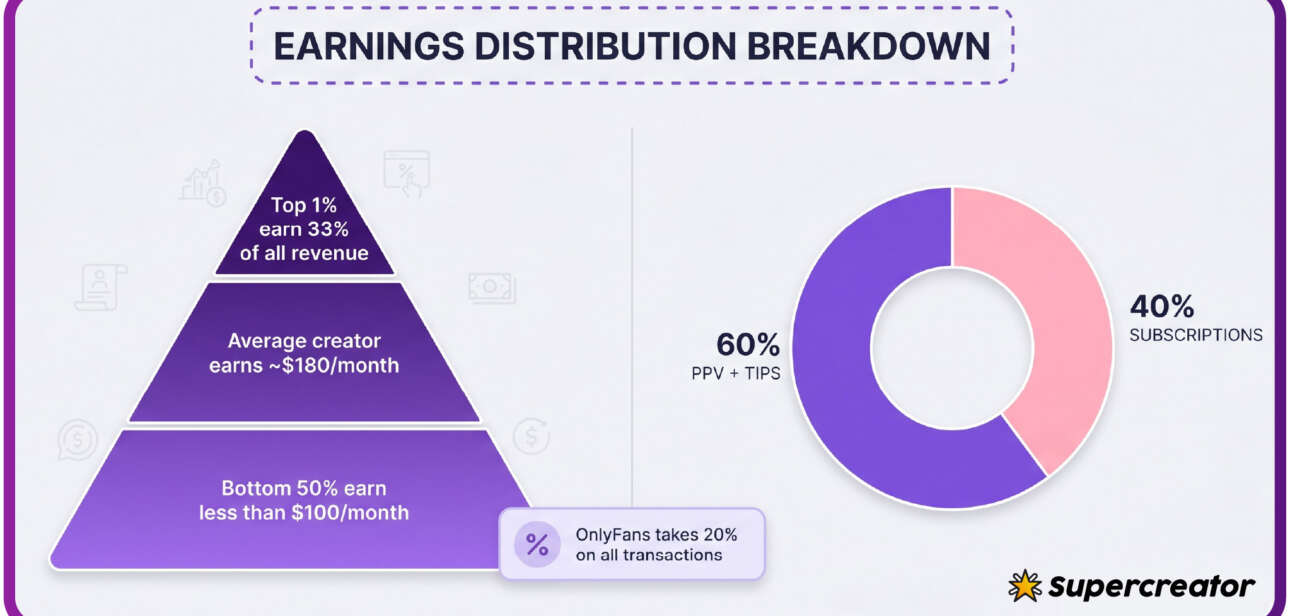
Paid subscriptions run from $4.99 to $49.99, though most sit between $4.99 and $15, with averages clustering around $5 to $10. Free pages set the price to $0 and earn through pay-per-view messages, which unlock up to $50, and through tips, which can reach $100.
Paid chat commonly runs $3 to $5 per message, and the platform takes a 20% fee on everything, leaving the creator 80%. Promotional first months can sit below $4.99, for example a $3 first month, but the base price may not. When a creator raises the price, auto-renew stops and existing access lasts until the paid period ends.
FAQ
Will using a VPN cause OnlyFans to lock my account?
Not by itself. A consistent VPN endpoint that you use regularly becomes part of your normal pattern. Problems appear when a VPN is introduced for the first time alongside a new country and a new device, because the combined change looks unusual.
How many devices can I use OnlyFans on simultaneously?
Keep one primary session open, one secondary session available, and nothing else lingering. Review and revoke stale sessions regularly, because forgotten logins are the usual cause of conflicts.
What happens to active subscriptions if I lose my phone and cannot log in?
Subscriptions continue on their normal billing cycle because they are tied to the account, not the device. Recover access from a secondary device, revoke the missing session, then change the password. If you cannot recover quickly, contact support through the help centre so the account can be secured.
Do I need to re-verify my payment method when switching to a new computer?
Often yes, at least the first time. A new device fingerprint, an unfamiliar IP, and cleared cookies can all prompt the standard $0.10 verification hold, which is refunded within days. Keeping a wallet balance topped up lets you complete purchases without re-entering card details.


